
WordPress .htaccess Explained: What It Is and How to Use It Safely
The WordPress `.htaccess` file is a vital configuration file that is derived from the core `.htaccess` file of an Apache web server. The term `.htaccess` denotes hypertext access. It is a powerful file, functioning as a bridge for server configuration, which permits you to have very detailed control over the server behavior of your site. Apart from server-wide modifications, you are also able to set different rules for certain folders.
Table of Contents
For instance, you could redirect `/downloads` to a different URL or password-protect your `/images` folder so that only users with authorization can access it. Moreover, `.htaccess` has the capability to do URL redirects, thus making a site more secure by `.htaccess` blocking malicious bots, and the site can be made to load faster by caching which can be done through `.htaccess` and hence, the userexperience is enhanced.
The Ultimate Guide to WordPress .htaccess & How Do You Use it?
It is the .htaccess file that makes available an entire new world of possibilities for WordPress (WP) users.
With the WordPress .htaccess file, you have the power to alter the functioning of WordPress in a way that doesn’t require changing the core files of your installation. Particularly, this effect can be visibly great when you are working with a WordPress theme that is not custom-made for you. By employing a WordPress .htaccess file, you’d be able to adjust and modify the theme until it fits your requirements.
2. Where is the WordPress .htaccess File Located?
Are you unable to find your WordPress `.htaccess` file?
A few reasons could be responsible for this frequently asked question. In the first place, if you are creating a new WordPress site, you may simply not have the file. Secondly, your FTP client software might be set up to hide it. Most FTP programs like FileZilla or Cyberduck come with a default setting that hides the `.htaccess` file and other hidden files in the directory.
Normally, the `.htaccess` file is with the roots of your WordPress installation, i.e., the directory that contains the folders like `wp-content` and `wp-admin`. Nevertheless, it is quite possible that the `.htaccess` file location changes depending on how your website is set up. For instance, if you have installed WordPress in a subfolder, the `.htaccess` file will be there in that subfolder. To locate the file, your FTP client must be configured to display hidden files. This option is typically available in the preferences or settings of the program.
Find Hidden WordPress .htaccess Files
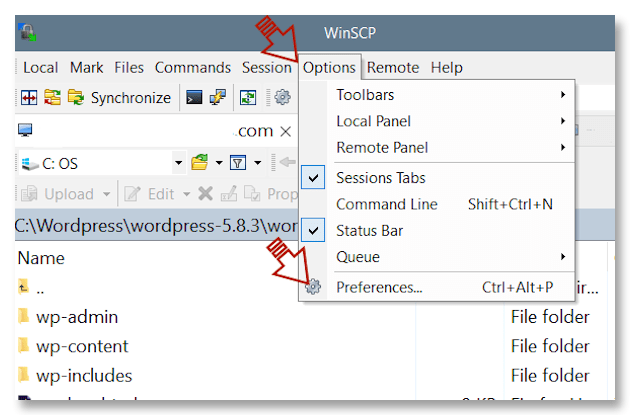
If you want to verify or modify this setting, it is necessary that you change the options and preferences of the software. I have used WinSPC and, therefore, the next screenshot will be taken from there, but the steps should be more or less the same no matter what software you are using.
Go to Options > Preferences (Or something similar, depending on your FTP client software)
Next, go to Panels and click the box for Show Hidden Files.
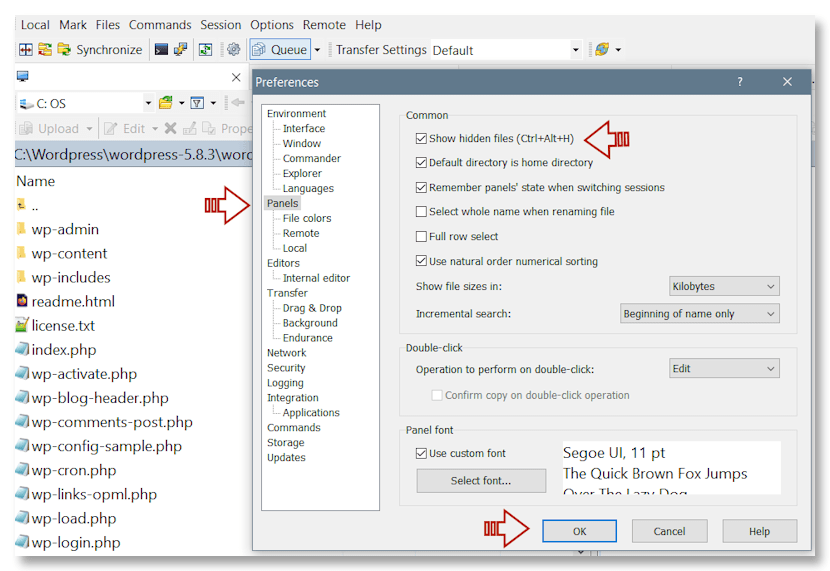
Now your WordPress .htaccess files are visible.
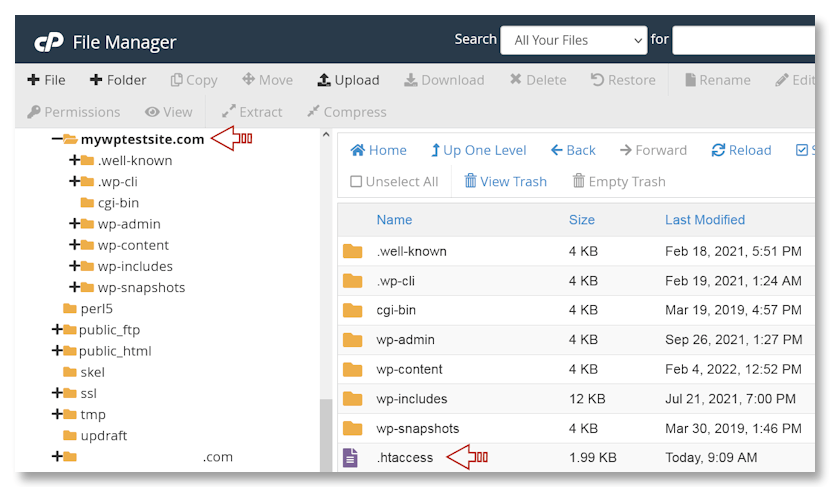
Find Your .htaccess File Via Your Host’s File Manager
You can also find your .htaccess File via your web host’s File Manager.
Log into your host’s cPanel-or whatever panel they use.

Choose File Manager and log into your server.
Depending on how your site is configured, the WordPress .htaccess file could be located at the root of your site or it could be under your domain. In the illustration that I am providing, I have several sites on my domain and I prefer to have a separate WordPress .htaccess file for each location.
Access your domain, which may be at the root level or within your public_html directory.
3. How to Create a .htaccess File
Maybe you don’t have an .htaccess file in your WordPress installation if you cannot find it. This situation is commonly caused by permission restrictions for files. WordPress needs to have certain permissions if it is to create and change this very important configuration file.
First of all, make sure you have allowed hidden files to be shown in your FTP client or file manager. If the file still cannot be found, then it is indicating a permissions problem.
In order to fix this, you can create a default .htaccess file locally. This will help you find out if the issue is with permissions. When you try to make this file, you’ll see if WordPress has the access it needs. The next steps will show you how to check for permission issues and then create a necessary .htaccess file for your WordPress site.
Check Permissions
1. From your WordPress dashboard, go to Settings >Permalinks.
2. When you’re on the Permalinks page, scroll down to the bottom and click the Save Changes button-without making any changes beforehand.
3. At this point, WordPress will attempt to generate an .htaccess file. If you don’t have the proper permissions, an error stating “.htaccess file is not writeable” will appear.
Create a WordPress .htaccess File
1. Log into your host’s cPanel or equivalent and navigate to your File Manager.
2. In the lefthand sidebar menu, click on the public_html folder.
3. Once you’re in the public_html folder, create a new file by choosing the +File button in the top left of the main menu.

4. In the New File Name field type .htaccess, and then click the Create New File button.
5. Scroll through the files in your public_html folder until you find the .htaccess file you just created, and then right-click and choose Edit.
6. Add the following to the file to create a basic WordPress .htaccess file.
# BEGIN WordPress
RewriteEngine On
RewriteRule .* – [E=HTTP_AUTHORIZATION:%{HTTP:Authorization}]
RewriteBase /
RewriteRule ^index\.php$ – [L]
RewriteCond %{REQUEST_FILENAME} !-f
RewriteCond %{REQUEST_FILENAME} !-d
RewriteRule . /index.php [L]
# END WordPress
7. Save and close the file.
Your WordPress install now has an .htaccess file. But what if you want to edit it in the future?
4. How to Edit Your WordPress .htaccess File
There are multiple reasons to edit your .htaccess file. Here are a few things you can use your .htaccess file to do, to name a few.
- Block individual IP addresses or a range of IP addresses, such as an entire country
- Restrict access to specific files on your site
- Launch custom error pages
- Tighten security against malware and other issues
- Optimize your site for speed
Before editing your WordPress .htacess file-or any WordPress file-it’s important to make a backup of the file. Backups only take a second but they can save you from hours or days of aggravation if something goes wrong.
How to Edit Your WP .htaccess Using cPanel
1. Log into your host’s cPanel and navigate to your File Manager.
2. Navigate to your public_html file and then right-click on it and choose edit.
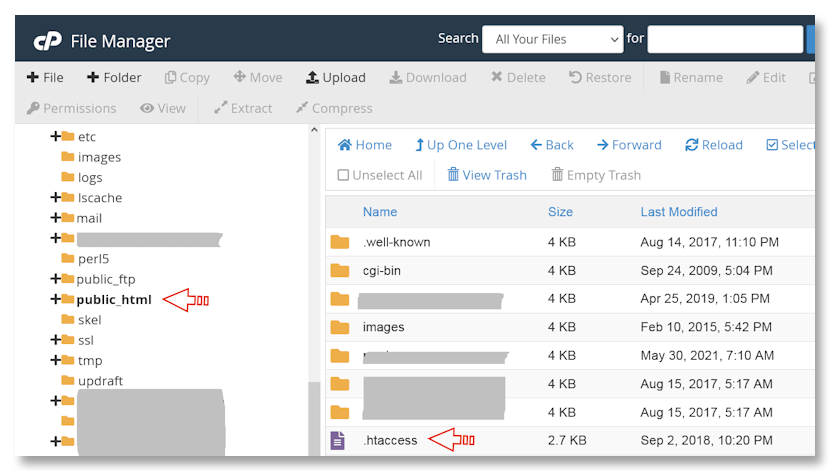
3. Make your edits and then save and close.
How to Edit Your WP .htaccess Using an FTP Client
There are many free FTP clients to choose from, including:
- FileZilla
- WinSPC
- Classic FTP
I use WinSPC so the following examples a created in it.
1. Log into your server using the FTP login information provided by your host.
2. Find your .htaccess file and right-click it to edit.
How to Edit Your WP .htaccess Using a Plugin
Depending on your comfort level when it comes to finding and editing WordPress core files, you might prefer to use a plugin to make changes to your .htaccess file.
One option is the WP Htacess File Editor. It provides you with a fast and easy way to edit, fix, and test WordPress features.

This plugin provides the following features:
- .htaccess syntax testing
- Automatic backups of your WP. Htaccess file
Here are the steps to download, install, and use the WP Htaccess File Editor.
1. Log into your WordPress dashboard.
2. Find and install the plugin via the Add New Plugin button.
3. Navigate to Settings > WP Htaccess Editor
4. Insert your cursor in line 1 and add a new blank line. From there, you can add new snippets and rules.
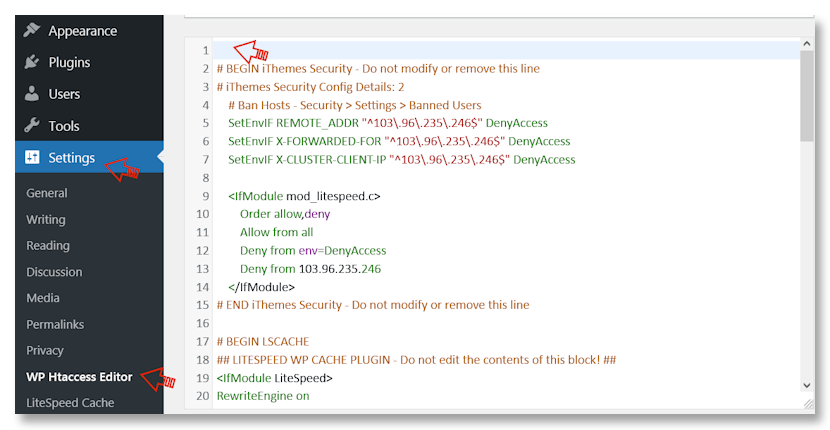
Now that you know how to find your .htaccess file, how to create a new one if necessary, and how to make edits to it. But what edits can you make?
5. What Changes Can You Make with Your .htaccess File?
One frequent utilization of the WordPress .htaccess file is setting up redirects.
Probably, all of us have at least once come across a 404 Page not Found error. It is, however, especially irritating when it is a help or support topic that has been moved without redirecting a user to the new location.
If you are performing any kind of cleanup on your site and consolidating or moving pages, consider your users and the URLs they might be following.
Another typical redirect is a domain name change. Maybe you own the domains for your.comany.com and yourcompany.com and want the first one to redirect to the second. Or maybe you have rebranded and have a completely new domain name but do not want to lose the traffic that is still directed to your old site.
Don’t forget to back up your WordPress .htaccess file before you make any changes!
How to Redirect a Single WordPress Post of Page
Simply add the following to the top or bottom of your .htaccess file. Be sure to change the generic info to your URLs and domain.
Redirect 301 /old-page-or-post-url https://yourdomain.com/page-or-post-url
How to Redirect Your Entire Site Using .htaccess
If you have an old or similar domain name you would like to point to a new domain, add the following to your WordPress .htaccess file. Be sure to replace yourolddomain and yournewdomain with your own domain info.
Note that this will redirect the domain whether it’s typed in with or without www.
RewriteEngine on RewriteCond %{HTTP_HOST} ^yourolddomain.com [NC,OR] RewriteCond %{HTTP_HOST} ^www.yourolddomain.com [NC] RewriteRule ^(.*)$ https://yournewdomain.com/$1 [L,R=301,NC]
Forcing HTTPS .htaccess
If you install an SSL certificate on your WordPress site you need to force HTTPS. This additional step is necessary to ensure that your site starts to use the secure HTTPS URL instead of the insecure HTTP URL. This is done by adding the following to your .htaccess file.
SSLOptions +StrictRequire SSLRequireSSL SSLRequire %{HTTP_HOST} eq “www.WordPress.com” ErrorDocument 403 https://www.WordPress.com
6. Optimize WordPress Speed Using .htaccess
If you pay any attention to SEO, you know site speed is an important ranking factor. If you have a site that loads slowly, Google won’t favor your site by placing it high in the Search Engine Results Pages (SERPs).
There are many SEO tools, but one way to speed up your site is with your WordPress .htaccess file.
Here are a few things you can do that will increase your site speed.
Enable Gzip and Deflate Compression
You’re probably familiar with zipped or gzipped files already. Zipping compresses a file to reduce its size. And not just for images or large documents you’re trying to share. It can also compress the coding that makes up your site.
Assuming your site is on an Apache server, copy and paste the following to the top of your .htaccess file, right before #BEGIN WordPress.
This will add gzip compression to your site.
 # Compress HTML, CSS, JavaScript, Text, XML and fonts
  AddOutputFilterByType DEFLATE application/javascript
  AddOutputFilterByType DEFLATE application/rss+xml
  AddOutputFilterByType DEFLATE application/vnd.ms-fontobject
  AddOutputFilterByType DEFLATE application/x-font
  AddOutputFilterByType DEFLATE application/x-font-opentype
  AddOutputFilterByType DEFLATE application/x-font-otf
  AddOutputFilterByType DEFLATE application/x-font-truetype
  AddOutputFilterByType DEFLATE application/x-font-ttf
  AddOutputFilterByType DEFLATE application/x-javascript
  AddOutputFilterByType DEFLATE application/xhtml+xml
  AddOutputFilterByType DEFLATE application/xml
  AddOutputFilterByType DEFLATE font/opentype
  AddOutputFilterByType DEFLATE font/otf
  AddOutputFilterByType DEFLATE font/ttf
  AddOutputFilterByType DEFLATE image/svg+xml
  AddOutputFilterByType DEFLATE image/x-icon
  AddOutputFilterByType DEFLATE text/css
  AddOutputFilterByType DEFLATE text/html
  AddOutputFilterByType DEFLATE text/javascript
  AddOutputFilterByType DEFLATE text/plain
  AddOutputFilterByType DEFLATE text/xml
Enable Browser Caching
If you’re not already using a caching plugin on your site, enabling caching using your WordPress .htaccess file can do it for you.
Caching will be stored for the length of time you set, so you can change the code below to suit your needs. Add the following two code snippets below to your .htacess file.
Expires Headers
Expires Headers
#BEGIN EXPIRES HEADERS

# Enable expirations
ExpiresActive On
# Default expiration: 1 hour after request
ExpiresDefault "now plus 1 hour"
# CSS and JS expiration: 1 week after request
ExpiresByType text/css "now plus 1 week"
ExpiresByType application/javascript "now plus 1 week"
ExpiresByType application/x-javascript "now plus 1 week"
# Image files expiration: 1 month after request
ExpiresByType image/bmp "now plus 1 month"
ExpiresByType image/gif "now plus 1 month"
ExpiresByType image/jpeg "now plus 1 month"
ExpiresByType image/jp2 "now plus 1 month"
ExpiresByType image/pipeg "now plus 1 month"
ExpiresByType image/png "now plus 1 month"
ExpiresByType image/svg+xml "now plus 1 month"
ExpiresByType image/tiff "now plus 1 month"
ExpiresByType image/vnd.microsoft.icon "now plus 1 month"
ExpiresByType image/x-icon "now plus 1 month"
ExpiresByType image/ico "now plus 1 month"
ExpiresByType image/icon "now plus 1 month"
ExpiresByType text/ico "now plus 1 month"
ExpiresByType application/ico "now plus 1 month"
# Webfonts
ExpiresByType font/truetype "access plus 1 month"
ExpiresByType font/opentype "access plus 1 month"
ExpiresByType application/x-font-woff "access plus 1 month"
ExpiresByType image/svg+xml "access plus 1 month"
ExpiresByType application/vnd.ms-fontobject "access plus 1 month"

#END EXPIRES HEADERS# BEGIN WordPress
Now add the following:
#BEGIN EXPIRES HEADERS

# Enable expirations
ExpiresActive On
# Default expiration: 1 hour after request
ExpiresDefault "now plus 1 hour"
# CSS and JS expiration: 1 week after request
ExpiresByType text/css "now plus 1 week"
ExpiresByType application/javascript "now plus 1 week"
ExpiresByType application/x-javascript "now plus 1 week"
# Image files expiration: 1 month after request
ExpiresByType image/bmp "now plus 1 month"
ExpiresByType image/gif "now plus 1 month"
ExpiresByType image/jpeg "now plus 1 month"
ExpiresByType image/jp2 "now plus 1 month"
ExpiresByType image/pipeg "now plus 1 month"
ExpiresByType image/png "now plus 1 month"
ExpiresByType image/svg+xml "now plus 1 month"
ExpiresByType image/tiff "now plus 1 month"
ExpiresByType image/vnd.microsoft.icon "now plus 1 month"
ExpiresByType image/x-icon "now plus 1 month"
ExpiresByType image/ico "now plus 1 month"
ExpiresByType image/icon "now plus 1 month"
ExpiresByType text/ico "now plus 1 month"
ExpiresByType application/ico "now plus 1 month"
# Webfonts
ExpiresByType font/truetype "access plus 1 month"
ExpiresByType font/opentype "access plus 1 month"
ExpiresByType application/x-font-woff "access plus 1 month"
ExpiresByType image/svg+xml "access plus 1 month"
ExpiresByType application/vnd.ms-fontobject "access plus 1 month"

#END EXPIRES HEADERS# BEGIN WordPress
Cache-Control
# BEGIN Cache-Control Headers

 <filesmatch "\.(ico|jpe?g|png|gif|swf)$"="" style="box-sizing: border-box;">
 Header set Cache-Control "max-age=2592000, public"

 <filesmatch "\.(css)$"="" style="box-sizing: border-box;">
 Header set Cache-Control "max-age=604800, public"

 <filesmatch "\.(js)$"="" style="box-sizing: border-box;">
 Header set Cache-Control "max-age=216000, private"

 <filesmatch "\.(x?html?|php)$"="" style="box-sizing: border-box;">
 Header set Cache-Control "max-age=600, private, must-revalidate"


# END Cache-Control Headers
Adding the above codes to your WordPress .htaccess file will speed up the time it takes for your website to load and may help with your SEO.
Conclusion
It is very essential to utilize to the maximum the power of your WordPress ‘.htaccess’ file for the optimization of your site. This strong configuration file is made up of server-level changes that performance and security can be increased.
Simply, it is possible for you to redirect URLs, enable caching, or prevent suspicious traffic with the help of `.htaccess` file. These changes, on the one hand, can considerably speed up your site and, on the other hand, can defend it against malicious attackers.
Even though the ‘.htaccess’ file is a vital one, other WordPress administration instruments may help you to simplify your working process. Think about employing WPBlazer to be able to handle your WordPress admin work in a most efficient way, hence, you will be able to save a great deal of time and energy which you can invest in routine maintenance.
WordPress .htaccess File FAQ
| Question Category | Question | Answer |
|---|---|---|
| General & Location | What is the .htaccess file? | It is a hidden configuration file for the Apache web server (or LiteSpeed) that contains rules controlling site behavior, including access control, redirects, and URL rewriting. |
| General & Location | Where is it located? | It is typically found in the root directory of your WordPress installation, such as /public_html/ or the main domain folder. |
| General & Location | What is its default purpose in WordPress? | By default, it manages WordPress permalinks, enabling clean and human-readable URLs like /my-page-title/. |
| General & Location | What if I can’t find it? | Enable “Show Hidden Files” in your FTP client or File Manager. If it still doesn’t exist, go to Settings → Permalinks and click Save Changes to generate it. |
| Security & Access | How can .htaccess improve security? | It allows server-level protection such as blocking access to sensitive files like wp-config.php, restricting IP addresses, and password-protecting the wp-admin area. |
| Security & Access | How do I prevent hotlinking? | You can add rules that block external websites from directly linking to your images or media files, preventing unnecessary bandwidth usage. |
| Security & Access | How do I deny a malicious IP address? | Add a directive such as Deny from [IP Address] to block all requests coming from that source. |
| Performance | Can it improve site performance? | Yes. You can configure browser caching and enable Gzip compression to reduce file sizes and speed up page loading. |
| Performance | How do I force HTTPS? | Use rewrite rules that automatically redirect all HTTP traffic to the secure HTTPS version of your website. |
| Redirection | How do I set up a permanent redirect? | Use a 301 redirect to permanently move a URL while preserving SEO value, for example: Redirect 301 /old-url/ /new-url/. |
| Editing & Safety | What are the risks of editing it? | A small syntax error can trigger a 500 Internal Server Error and make the entire site inaccessible. |
| Editing & Safety | What is the most important safety rule? | Always create a complete backup of your existing .htaccess file before making any changes. |
| Editing & Safety | Where should I add custom code? | Add custom rules either before # BEGIN WordPress or after # END WordPress so WordPress does not overwrite them. |
| Editing & Safety | What kind of editor should I use? | Use a plain-text editor like Notepad++ or VS Code. Avoid word processors such as Microsoft Word, as they insert hidden formatting that can break the file. |
Originally posted 2025-12-10 13:24:20.