Complete Guide to Blocking YouTube Channels: Managing Your Content Experience in 2026
YouTube represents the largest video-sharing platform globally, hosting billions of hours of content across countless channels and categories. While this vast content library provides incredible value, not every channel aligns with your interests, values, or viewing preferences. Understanding how to manage your YouTube experience through channel blocking and content filtering creates a more enjoyable, relevant, and productive viewing environment.
Table of Contents
Content management on YouTube extends beyond simple personal preferences. Parents protecting children from inappropriate material, professionals maintaining workplace-appropriate browsing, and individuals curating educational content all benefit from sophisticated channel management strategies. This comprehensive guide explores multiple approaches to controlling which channels and content types appear in your YouTube experience.
Understanding YouTube Channel Blocking Capabilities
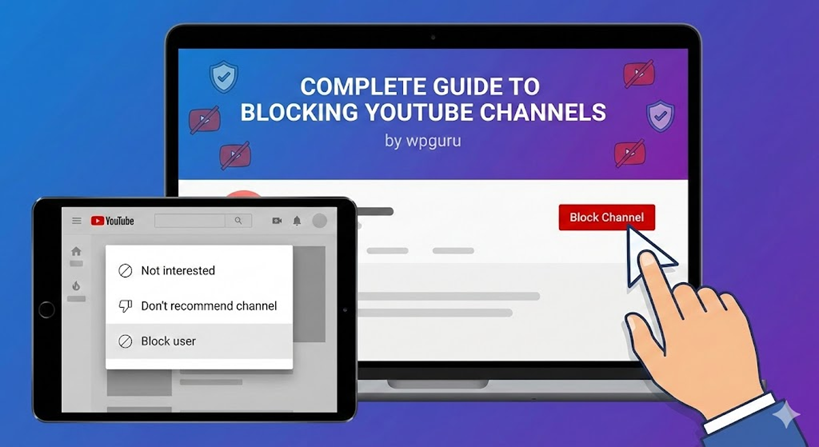
YouTube provides several mechanisms for controlling channel visibility and interaction. The platform recognizes that users require tools for managing their content consumption, protecting family members, and maintaining healthy digital environments. Channel blocking represents one of several available content management features designed to enhance user experience.
What Blocking Actually Accomplishes
When you block a YouTube channel, several specific actions occur within the platform. The blocked channel’s content stops appearing in your recommended videos, preventing unwanted suggestions from cluttering your homepage and sidebar recommendations. Additionally, the blocked channel loses the ability to comment on videos you publish, eliminating potential harassment or spam interactions.
Understanding these specific effects helps set appropriate expectations. Blocking prevents recommendation algorithms from surfacing content from specific channels and stops direct interaction through comments. However, blocking doesn’t prevent you from finding blocked channels through direct searches if you specifically look for them.
Limitations of Channel Blocking
Channel blocking operates within certain boundaries that users should understand. The blocking mechanism primarily affects your personalized recommendations and direct interactions. If you actively search for a blocked channel by name, YouTube still displays results, as the platform distinguishes between blocking recommendations and preventing all access.
Additionally, blocking affects only your individual account. Other users, including family members using different accounts on shared devices, maintain their own separate blocking preferences. This distinction matters for parents managing content across multiple family accounts, requiring individual configuration for each user profile.
Step-by-Step Channel Blocking Process
Implementing channel blocks requires different procedures depending on whether you access YouTube through desktop browsers or mobile applications. Both methods accomplish the same goal but follow platform-specific interface designs and navigation patterns.
Blocking Channels on Desktop Computers
Desktop YouTube blocking utilizes the browser-based interface, providing access through any computer with internet connectivity. The process involves several straightforward steps that typically take less than one minute to complete.
First, navigate to YouTube using your preferred web browser and ensure you’re logged into your account. Use the search bar located at the top of the page to find the specific channel you want to block. Search results display both individual videos and channel pages—select the channel name rather than specific videos to access the channel’s main page.
Once on the channel’s page, locate the channel description text directly below the channel name and banner. This area previously appeared in a dedicated “About” tab, but YouTube’s interface updates consolidated this information into the channel header section. Click on the description text or the “…more” link to expand the full channel information popup.
Within the expanded information, locate the flag icon typically labeled “Report user.” Click this icon to access reporting and management options. From the menu that appears, select “Hide user from my channel.” This option blocks the channel from commenting on your content and removes their videos from your recommendations.
YouTube prompts you to confirm this action, ensuring you don’t accidentally block channels. After confirming, the blocking takes effect immediately, updating your recommendation algorithms and comment permissions accordingly.
Blocking Channels on Mobile Devices
Mobile applications for YouTube, available on both iOS and Android devices, provide similar functionality through touch-optimized interfaces. The mobile blocking process accommodates smaller screens and touch-based navigation while accomplishing the same objectives as desktop blocking.
Launch the YouTube application on your smartphone or tablet and verify you’re signed into the correct account. Use the search icon, typically located at the top right of the screen, to find the channel you wish to block. Tap on the channel name from the search results to access the channel’s main page.
Once viewing the channel page, locate the three-dot menu icon positioned in the top right corner of the screen. This menu provides access to various channel management options. Tap the menu icon to reveal available actions for this channel.
From the menu options, select “Hide user from my channel.” This action performs the same blocking function as the desktop process, preventing the channel from commenting on your videos and eliminating their content from your personalized recommendations. The application may prompt you to confirm this action before finalizing the block.
The mobile blocking process typically requires fewer steps than desktop blocking due to consolidated menu structures designed for efficient touch navigation. Changes take effect immediately across all devices where you’re signed into the same YouTube account.
Advanced Content Management Strategies
Beyond basic channel blocking, YouTube and third-party tools offer additional mechanisms for refining your content experience. These advanced strategies provide more granular control over what content surfaces in your recommendations and feed.
Utilizing Don’t Recommend Channel Feature
YouTube offers a softer alternative to complete blocking through the “Don’t recommend channel” option. This feature removes a channel’s content from your recommendations without completely blocking interactions. The distinction proves useful when you find a channel’s content irrelevant but not offensive enough to warrant full blocking.
Accessing this feature requires minimal effort. When browsing your YouTube homepage or search results, locate any video from the channel you wish to remove from recommendations. Click or tap the three-dot menu next to the video title. From the menu options, select “Don’t recommend channel.”
This action instructs YouTube’s recommendation algorithm to deprioritize content from this specific channel in your personalized feed. Unlike full blocking, the channel retains the ability to comment on your videos if you publish content. This approach works well for managing content fatigue from channels you occasionally enjoy but don’t want dominating your recommendations.
Implementing Restricted Mode Protection
YouTube’s Restricted Mode serves as a platform-level content filter designed to screen mature content. While not specifically targeting individual channels, Restricted Mode removes videos that YouTube’s algorithms identify as potentially inappropriate for younger audiences or professional environments.
Activating Restricted Mode works differently across devices and account types. On desktop browsers, scroll to the bottom of any YouTube page and locate the Restricted Mode toggle. Click the toggle to enable filtering, which applies immediately to your current browsing session.
Mobile applications provide Restricted Mode settings through the application’s settings menu. Access your profile icon, navigate to Settings, then General settings, where you’ll find the Restricted Mode toggle. Enabling this feature filters content across the entire application.
Understanding Restricted Mode’s limitations helps set appropriate expectations. The filtering relies on automated systems and community flagging rather than human review of every video. Some mature content may slip through filters, while legitimate educational content might be incorrectly restricted. Parents and organizations should view Restricted Mode as one layer in comprehensive content management strategies rather than a complete solution.
Leveraging Browser Extensions for Enhanced Control
Browser extensions provide sophisticated content filtering capabilities beyond YouTube’s native features. Tools like BlockTube, Video Blocker, and similar extensions offer keyword-based filtering, comment section management, and enhanced channel blocking across multiple dimensions.
These extensions typically operate through browser-specific app stores—Chrome Web Store for Google Chrome, Firefox Add-ons for Mozilla Firefox. Installation processes vary by browser but generally involve searching for the extension, clicking install, and granting necessary permissions.
After installation, extensions usually provide configuration interfaces for setting filtering rules. Users can block channels, hide videos containing specific keywords in titles or descriptions, filter comment sections, and customize recommendation behaviors. Advanced extensions even offer import/export functionality for sharing filter lists across devices or with family members.
Browser extensions provide maximum flexibility but introduce certain considerations. Extensions only affect browsers where they’re installed, not mobile applications or smart TV interfaces. Additionally, extensions require periodic updates to maintain compatibility with YouTube’s evolving interface. Users should evaluate extension privacy policies and permissions carefully, as these tools access your browsing data to function effectively.
Reversing Channel Blocks and Managing Block Lists
Circumstances change, and previously blocked channels might later prove relevant or interesting. YouTube provides mechanisms for reviewing and reversing blocking decisions, though the process differs from the initial blocking procedure.
Unblocking Individual Channels
Unblocking channels requires accessing Google account activity rather than YouTube directly. This design reflects how blocking information integrates with broader Google account settings. Navigate to Google My Activity through your account settings or by searching for “Google My Activity” in any search engine.
Within My Activity, locate the “Other activity” section, typically found in the left sidebar navigation or by scrolling through the main activity page. Click into Other activity to reveal various interaction types Google tracks across its services.
Find the section labeled “YouTube ‘Not interested’ feedback.” This area consolidates various YouTube content preferences, including channel blocks implemented through the “Hide user from my channel” action. Review the list of blocked channels and locate any you wish to unblock.
Click the “Delete” option next to specific channels to remove them from your blocked list. This action reverses the blocking, allowing the channel to appear in recommendations and comment on your videos again. Changes take effect within a few minutes as YouTube’s systems update your preference settings.
Understanding Batch Removal Limitations
Current YouTube and Google account systems don’t provide bulk unblocking functionality. Users must remove channel blocks individually through the My Activity interface. For users who’ve blocked many channels over time, this limitation creates tedious unblocking processes.
The workaround involves systematically working through blocked channels, evaluating each one, and selectively unblocking those you want to restore. While time-consuming, this process provides opportunity to review past blocking decisions and maintain only those blocks that remain relevant.
Some third-party browser extensions claim to offer bulk unblocking functionality. Users considering these tools should research their reliability, privacy practices, and compatibility with current YouTube systems before installing them.
Parental Control Integration and Family Management
Parents and guardians managing YouTube access for children benefit from understanding how channel blocking integrates with broader parental control strategies. YouTube offers family-focused features while third-party tools provide additional supervision capabilities.
YouTube Kids Platform Benefits
YouTube Kids represents Google’s dedicated application designed specifically for children. This separate platform provides curated content, simplified interfaces, and enhanced parental controls compared to standard YouTube. While not strictly a blocking mechanism, YouTube Kids offers a safer alternative by default through stringent content policies.
The platform allows parents to create individual profiles for each child with customized content settings based on age appropriateness. Parents can approve specific channels, enabling only explicitly allowed content rather than blocking from a larger pool. This whitelist approach provides more control than blacklist blocking strategies.
However, YouTube Kids contains limitations. The platform’s content library includes only videos approved for child audiences, eliminating access to educational content, music videos, and other material appropriate for teenagers but excluded from children’s content categories. Families with older children often require different strategies balancing safety with age-appropriate content access.
Third-Party Monitoring Solutions
Comprehensive parental control software extends beyond YouTube-specific features, monitoring and managing multiple applications, websites, and device functions. Solutions like mSpy, Qustodio, Net Nanny, and similar platforms offer cross-application content filtering, screen time management, and activity monitoring.
These platforms typically require installation on children’s devices with configuration through parent-controlled accounts. Features vary by platform but often include website blocking, application restrictions, real-time activity monitoring, and detailed usage reports.
Implementing third-party parental controls involves balancing supervision with privacy and trust. Older children and teenagers may view monitoring as intrusive, potentially damaging parent-child relationships. Experts recommend involving children in discussions about online safety, explaining monitoring rationale, and adjusting controls as children demonstrate responsible behavior.
Family Account Management Strategies
Google accounts support supervised accounts for children under 13, managed through Family Link services. These accounts provide parents with oversight capabilities including YouTube restrictions, screen time limits, and content approval systems.
Creating supervised accounts requires parents to use their Google credentials to establish and manage child accounts. Parents control YouTube settings, determining whether children can access standard YouTube, YouTube Kids, or no YouTube access. For standard YouTube access, parents can enable Restricted Mode, approve specific channels, and review watch history.
This integrated approach provides comprehensive oversight while maintaining separate user experiences for each family member. However, supervised accounts require ongoing management, as children’s needs evolve with age and maturity. Regular review ensures restrictions remain appropriate and don’t unnecessarily limit educational or entertainment opportunities.
Reporting Problematic Content and Channels
Beyond personal blocking, YouTube relies on community reporting to identify content violating platform policies. Understanding reporting mechanisms helps improve the broader YouTube ecosystem while addressing content that exceeds individual blocking solutions.
Community Guidelines and Reporting Criteria
YouTube maintains extensive Community Guidelines prohibiting various content types including harassment, hate speech, dangerous or harmful content, violent or graphic material, and several other categories. Content violating these guidelines becomes eligible for removal after review by YouTube’s moderation teams.
Reporting individual videos involves clicking the three-dot menu on any video and selecting “Report.” YouTube prompts you to specify the violation type, providing categories matching Community Guidelines. Detailed reports including timestamps of specific violations help moderators review content efficiently.
Channel-level reporting targets creators who repeatedly violate policies or whose entire channel promotes prohibited content. Access channel reporting through the channel’s About section using the flag icon. Select “Report user” and specify concerns, providing any supporting evidence or explanation.
Understanding Enforcement Processes
YouTube employs both automated systems and human reviewers to process content reports. Artificial intelligence flags potential violations for human review, while reports from users prioritize content for evaluation. This hybrid approach balances scale with accuracy, though neither system proves perfect.
Reports don’t guarantee content removal. YouTube evaluates each report against Community Guidelines, considering context, educational value, and whether content violates specific policies. Some content that users find objectionable may not violate policies if it contains newsworthy, educational, or artistic merit despite uncomfortable subject matter.
Users reporting content don’t receive detailed notifications about enforcement actions due to privacy considerations. YouTube may notify reporters that their report was reviewed, but specific actions taken remain confidential. This approach protects both reporters and content creators from harassment while maintaining system integrity.
Optimizing Recommendation Algorithms Through Engagement
YouTube’s recommendation system responds to engagement patterns beyond explicit blocking. Strategic interaction with content trains algorithms to surface more relevant videos while naturally suppressing undesired content.
Positive Engagement Signals
The recommendation algorithm weighs multiple engagement factors when determining content to surface. Watch time, likes, subscriptions, and playlist additions signal strong interest in specific content types. Consistently engaging with preferred channels and topics gradually refines recommendations toward those preferences.
Completing videos rather than clicking away early signals satisfaction with content. The algorithm interprets watch-through rates as indicators of content quality and relevance to your interests. Even for longer videos, watching substantial portions demonstrates genuine engagement compared to brief sampling.
Subscriptions provide the strongest signal of channel preference. Subscribing tells YouTube you want to see content from specific creators regularly. The algorithm prioritizes subscribed channels in recommendations, notification systems, and home feed placement.
Negative Engagement Signals
Beyond explicit blocking, softer negative signals help refine recommendations without complete channel removal. Clicking “Not interested” on individual videos tells YouTube to reduce similar content in your recommendations. While less permanent than blocking, these signals accumulate, training algorithms over time.
Skipping videos quickly after starting them signals low interest or satisfaction. The algorithm interprets rapid abandonment as content mismatch, reducing the likelihood of recommending similar videos in the future. This behavior naturally filters content without explicit blocking actions.
Avoiding interaction with certain content types—not clicking, not watching, not engaging—eventually signals disinterest to recommendation systems. The algorithm notes which visible recommendations you ignore, using that data to refine future suggestions. Passive avoidance proves less effective than active signals but contributes to overall recommendation patterns.
Privacy Considerations and Data Management
Content blocking and preference management involve data collection and analysis by YouTube and Google. Understanding privacy implications helps users make informed decisions about content management strategies and tool adoption.
How YouTube Uses Blocking Data
When you block channels or mark content as not interested, YouTube records these preferences to refine your experience. This data remains private, not shared with blocked channels or other users. The information feeds recommendation algorithms, improving content surfacing accuracy over time.
YouTube associates blocking decisions with your Google account rather than storing them locally on devices. This approach enables consistent experiences across desktop computers, mobile devices, and smart TVs where you sign into the same account. However, it also means Google maintains records of your content preferences tied to your identity.
Users concerned about data collection should review Google account privacy settings and YouTube privacy preferences. Options exist for limiting data collection, clearing watch and search history, and pausing various tracking mechanisms. These privacy controls allow customization of the balance between personalized experiences and data minimization.
Third-Party Tool Privacy Implications
Browser extensions and parental control applications require access to browsing data and YouTube interactions to function. Users should carefully evaluate privacy policies before installing these tools, understanding what data they collect, how they store information, and whether they share data with third parties.
Reputable extensions and applications provide transparent privacy policies explaining data practices clearly. Warning signs include vague privacy statements, requests for excessive permissions beyond stated functionality, or lack of clear contact information for the developer or company.
Reading user reviews helps identify privacy concerns or unexpected behaviors. Community feedback often highlights issues with specific tools before widespread awareness develops. Prioritize extensions and applications with strong reputations, regular updates, and responsive developer support.
Creating Comprehensive Content Management Systems
Effective YouTube content management often combines multiple strategies rather than relying on single approaches. Layering different tools and techniques provides robust content control while accommodating various use cases and requirements.
Multi-Layered Filtering Approaches
Comprehensive strategies might combine Restricted Mode for baseline filtering, channel blocking for specific problematic creators, “Don’t recommend” for less severe content fatigue, and browser extensions for keyword-based filtering. This layered approach addresses different content issues through appropriate mechanisms.
Parents might implement YouTube Kids for young children, supervised accounts with Restricted Mode for tweens, standard YouTube with channel blocking for teenagers, and third-party monitoring software for oversight across age groups. Different tools serve different developmental stages and trust levels.
Professional environments might combine network-level content filtering, Restricted Mode on shared computers, and user education about appropriate workplace browsing. Technical controls combined with clear policies and training create comprehensive professional content management.
Regular Review and Adjustment
Content preferences evolve over time as interests change, children mature, and life circumstances shift. Periodic review of blocking lists, Restricted Mode settings, and third-party tool configurations ensures content management strategies remain appropriate and effective.
Quarterly reviews provide good balance between maintaining current effectiveness and avoiding excessive time investment. Review blocked channels to determine if blocks remain necessary, evaluate whether Restricted Mode settings match current needs, and confirm third-party tools function properly with YouTube’s latest interface.
Family discussions about content management help parents understand children’s evolving interests and maturity while maintaining appropriate supervision. Open dialogue builds trust and helps children develop healthy digital habits that persist beyond parental oversight.
Conclusion: Empowering Your YouTube Experience
YouTube’s vast content library provides incredible educational, entertainment, and cultural value. However, maximizing this value requires active management of what content you and your family consume. Understanding channel blocking, content filtering, and advanced management strategies empowers you to create viewing experiences aligned with your values, interests, and goals.
Effective content management isn’t about eliminating all challenging or uncomfortable content. Rather, it involves intentionally curating your digital environment to support your wellbeing, productivity, and personal development while protecting vulnerable family members from inappropriate material.
The tools and strategies outlined in this guide provide comprehensive capabilities for managing YouTube content. From basic channel blocking through advanced filtering systems, users can customize their experiences at whatever level of sophistication matches their technical comfort and specific needs.
Remember that content management represents an ongoing process rather than one-time configuration. As YouTube evolves, new features emerge, and your needs change, revisit these strategies to ensure your content management approach remains effective and appropriate. Taking control of your YouTube experience enhances the platform’s benefits while minimizing potential negative impacts on you and your family.