
WordPress Image Sizes: The Must-Read Guide
Optimizing your WordPress image sizes is extremely vital, and it has two vital effects on your site, both in its aesthetic quality and the performance of the site. The right image size and file size will guarantee your website and the user experience are both attractive and without delays.
Table of Contents
To begin with, there is the quality of the image. You desire your images to appear sharp and clear, no matter what the device that your visitors are using is. Proper display of high-resolution images can add a lot of professional and polished look to the site. Consider a photo of a product on an online store that is blurred or pixelated – right away it will reduce trust and even put off prospective clients. Likewise, a blog post which has a beautiful landscape picture and is not well presented will no longer be a good one.
On the other hand, really large pictures also may appear to be distorted in case the browser tries to reduce their size significantly. The appropriate balance is an important attribute of presentation. Think about the way your theme presents pictures. The majority of WordPress themes would have featured images, gallery images, and content images sections. These requirements will make sure that your images are posted and they are as expected.
Secondly, and, possibly, more importantly, image size has a direct effect on your site speed. The size of the image files is larger, and hence it may be very slow to load your site. Delays in loading cause frustration, increase in bouncing rates, and it is bad news to your search engine ranking. Google and other search engines value quick loading websites and thus search engine optimization (SEO) involves making sure that your pictures are optimized. When one of the users is clicking on the link to your site, you would want them to see a slow-loading web page. They will simply give up on your site and move to another one. Image files can be optimized in a number of ways.
This is a must read guide to every person who owns or runs a WordPress site. It covers every detail of image size in WordPress, giving you knowledge and tools you require to build a website that offers looks and loads quickly.
1. WordPress Image Sizes Explained
Image size is a crucial aspect of WordPress website management. Improperly sized images can lead to various issues, impacting user experience and search engine optimization. Incorrect image dimensions can result in misplaced or blurry visuals, detracting from the website’s aesthetic appeal. Furthermore, oversized images significantly slow down page loading times, which negatively affects website speed. Slow loading times can lead to frustrated visitors and ultimately hurt your WordPress SEO ranking.
Fortunately, WordPress offers built-in features to mitigate these problems. The platform automatically generates multiple image sizes upon upload, allowing you to select the most appropriate size for each context. This helps optimize image display and overall website performance. Using the correct image size ensures a faster, visually appealing, and SEO-friendly website.
How WordPress Processes images (default sizes)
Whenever you upload an image, WordPress automatically creates 4 different image sizes:
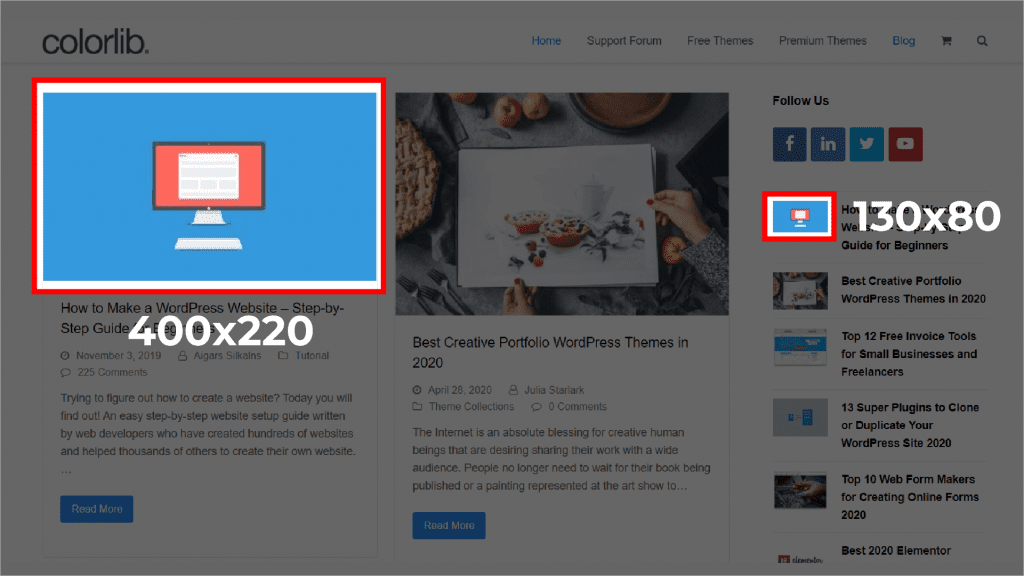
- Thumbnail size (150 x 150 pixels)
- Medium size (maximum 300 x 300 pixels)
- Large size (maximum 1024 x 1024 pixels)
- Full size (the original size of the uploaded image)
Images are optimized automatically in WordPress, unlike in other sites where resizing has to be done manually. It creates several versions of the uploaded photos, which is guaranteed to display optimally in different parts of the webpage. This aspect consumes less time and increases the performance of sites.
An example of a blog post: the size of the image in the header should be bigger to make an impression. At the same time, the size of the thumbnail of archive page of the blog is to be smaller. WordPress manages such differences with ease providing the correct image size depending on the particular situation and enhancing the loading time and user experience.
Changing WordPress Default Image sizes
In addition to the default image sizes, you can also upload your custom image sizes to fit your needs.
Here’s how:
- Go to your WordPress Admin Dashboard
- Click on Settings – Media
- In the Media Settings, adjust the default image settings to fit your preferences
- Click Save Changes to confirm
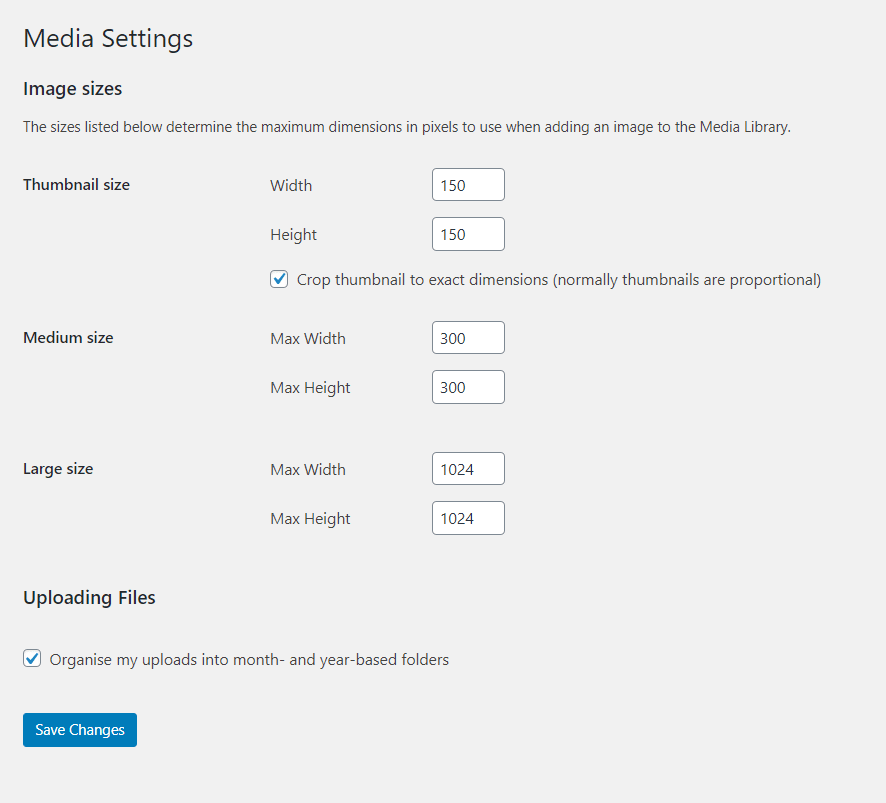 WordPress settings for changing default image sizes.
2. Best Image Sizes For WordPress
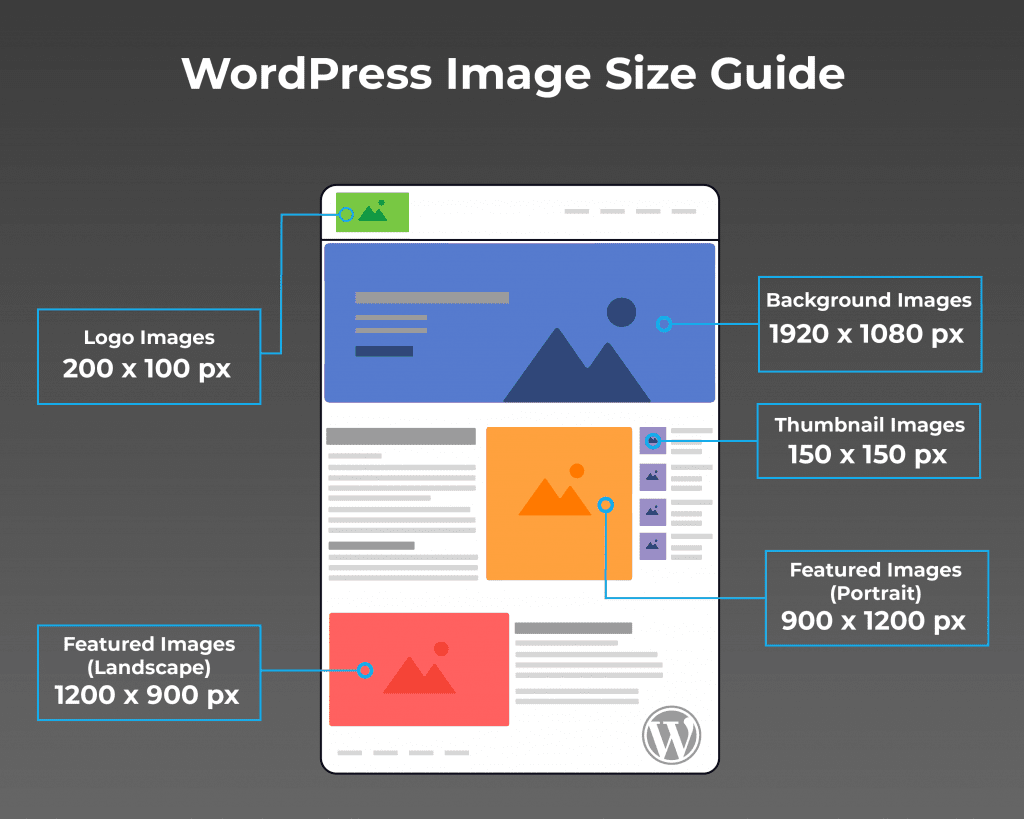
What’s the best image size to ensure fast, high-quality images that look good and responsive on desktop, tablet and any mobile device?
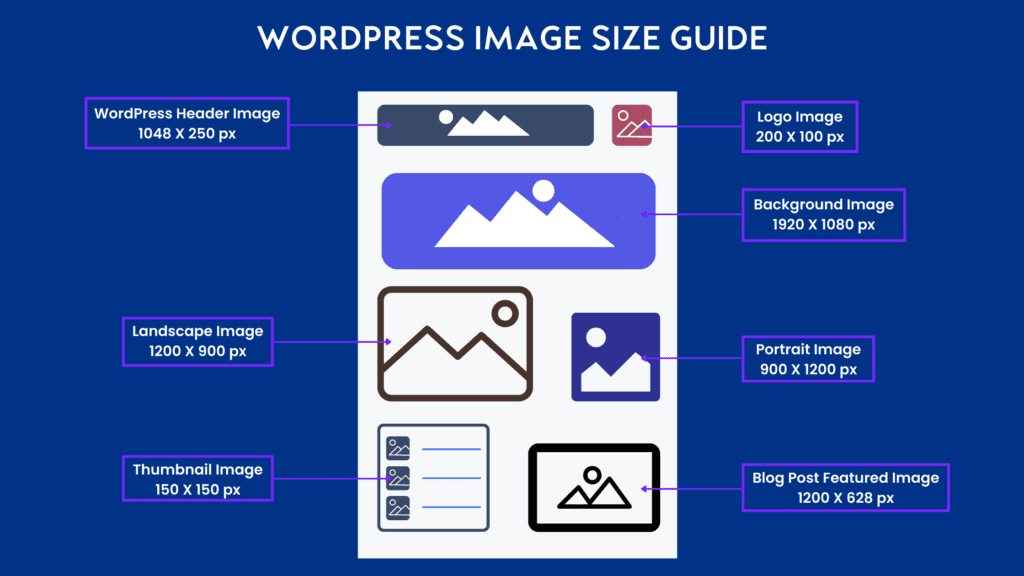
Here are the best image sizes for WordPress:
- Blog post image size (1200 x 630 pixels)
- Header image size (banner size 1048 x 250 pixels)
- Featured image size (landscape 1200 x 900 pixels)
- Featured image size (portrait 900 x 1200 pixels)
- WordPress background image size (1920 x 1080 pixels)
- Logo image size (200 x 100 pixels)
- Thumbnail image size (150 x 150 pixels)
Optimising WordPress Image File Sizes
Image file size is one of the most important factors when you are integrating images in your WordPress site. Big picture image files have a large effect on the speed of the website, which is an important factor of user experience. Visitors do not like waiting long before the site loads, and they may refuse to visit your site, a phenomenon referred to as bouncing. Slow websites are also penalized by the search engines during search ranking.
As such, do not use images that are bigger than required. Maximize every picture according to the purpose. As an example, a tiny thumbnail picture does not require an equal file size to a full-width banner picture.
An effective rule of thumb on the size of WordPress images is to target at less than 150KB of most images, including blog post images or sidebar images. Nevertheless, a little bigger file size may be tolerated in high-resolution pictures or pictures of heroes, yet, again, aim at effective compression.
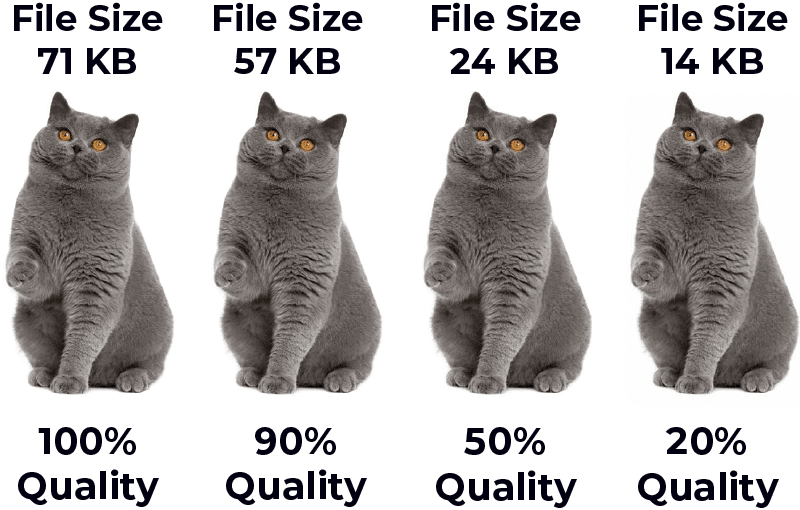 REDUCING IMAGE QUALITY CAN HAVE A BIG IMPACT ON IMAGE SIZE & SITE SPEED
Don’t forget about image compression
Speed in a site is the key to the achievement of your site; a slow site will not only frustrate your visitors, but also can affect the ranking of your site in search engines. Image optimization is also a major determinant of speed of the site. Image compression before uploading to WordPress enhances performance to a large extent without affecting visual quality unlike resizing which distorts the dimension of the image.
Image compression decreases the size of files. All the images on your site are the beneficiaries of this process. Image compression is the relevant issue to be considered since it lowers the performance of your site directly by causing it to load slowly and provide a bad user experience.
The online utility to do this is tinypng.com. It effectively reduces the size of the images and maintains the original size and quality of the image. Image optimization, and your site will perform better.
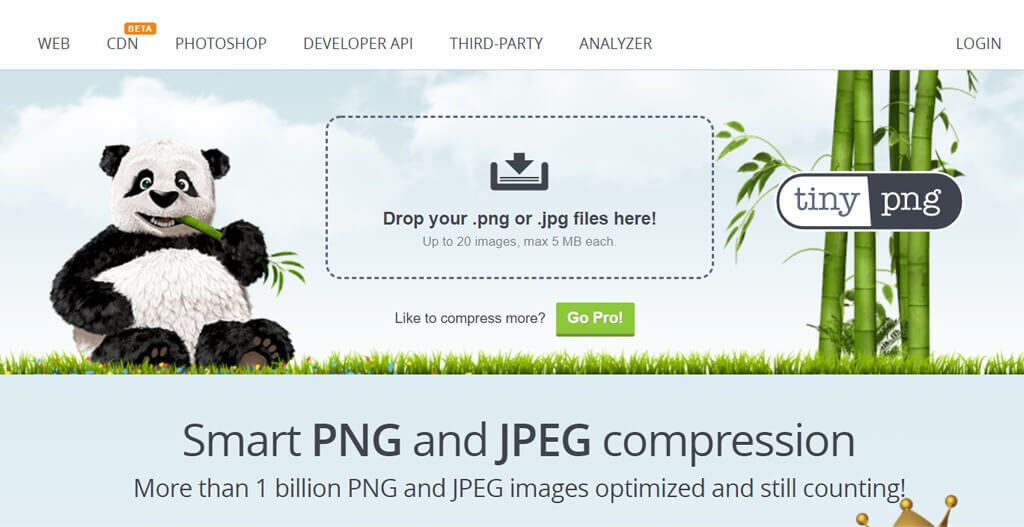
Compress every JPEG (photo) and PNG (graphic) you upload to improve website performance.
Resizing & Responsive Images
You will recall earlier in this post about how WordPress manipulates images? It is an inherent part of having optimal performance of the web site. WordPress automatically creates different sizes of images, which is an additional feature that offers inherent responsive image support. This enables web browsers such as Chrome, Firefox, Safari, and others to automatically choose the best size of the image according to the visitor, his or her device, and resolution.
Such responsiveness is essential towards positive user experience. To give an example, when a person looks at your site through the mobile phone, the browser will display a smaller but optimized image. This greatly compromises the time taken to load a page, because when the images are smaller, less data is needed to load the picture. On the other hand, desktop users will have a greater resolution of images, which will make the visuals clear.
Although WordPress does this resizing, you can also increase your image optimization efforts. Bulkresizephotos.com is a handy app to resize photos prior to posting them onto WordPress. Imagine that the size of your original photograph is 5000 pixels, whereas your web site layout only needs a size of 200 pixels. With this kind of tool, it is quite fast and effective to resize your images to the best size to save on bandwidth and enhance the speed of your websites.
3. WordPress Image Formats
WordPress has got different types of image formats, such as JPEG, PNG and GIF. JPEGs are good with photographs and they provide good compression. PNGs work well with graphic that has sharp lines and it does not lose quality. GIFs handle animation.
All formats have influences on file size and image quality. Select a suitable format to use in the best website performance. Give preference to formats that create a balance between file size to load fast and the quality of images to create visual appeal.
Choosing the Right Image Format
As a basic rule of thumb, choose JPEG for photos and PNG for graphics.
JPEG
JPEG or Joint Photographic Experts Group suits photographs because it can depict about 16 million colors making the files to have smaller sizes. This compression provides a reduction in loading time and sometimes makes the image sharper and more beautiful which is ideal to share beautiful landscapes or record unforgettable moments.
PNG
PNG, which is shortened to Portable Network Graphic, is more suitable in graphics. Although PNG only allows a limited number of colors as compared to JPEG, the major strength of the former is the ability to have a transparent image. The option gives the ability to eliminate backgrounds and allows graphics such as logos or graphics on the site to be successfully integrated with other backgrounds. The fact that it is a default choice when used in web design is attributed to the versatility of PNG and its clarity.
GIF
Last but not least is Graphics Interchange Format (GIF) which is mainly applied in animation. GIFs are compatible with up to 256 colors, transparency, and can be used to form short-looping animations, which is ideal in case of simple animations.
 PNG 230KB
 JPEG 112KB
Image Resolution – DPI (Dots per inch)
DPI, or Dots Per Inch, is a crucial factor in determining the visual quality of an image, particularly its resolution. Essentially, it quantifies the density of tiny dots or pixels within a single inch of the image. The higher the DPI, the greater the number of these dots packed into that inch, leading to a sharper, more detailed image.
Consider these examples: a 300 DPI image boasts a much higher resolution compared to a 200 DPI image of the same size. This difference is especially noticeable when zooming in, as the higher DPI image retains its clarity, while the lower DPI image appears pixelated.
For online use, a standard of 72 DPI is typically sufficient. There’s no need to increase this, as it only increases the file size without any noticeable improvement on screen. However, for print, a higher DPI, like 300, is essential to ensure sharp, high-quality prints.
4. WordPress plugins for images
WordPress has abundant tools to optimize the images, which is a significant balance between the performance and the appearance of the website.
These are the tools necessary to increase user experience and search engine rankings.
A good alternative is the EWWW Image Optimizer which is a free image optimizer and it automatically compresses images when uploaded. This minimizes the size of files without severely affecting the visual quality resulting in quicker loading time.
The other great plug-in is Smash Balloon Social Photo Feed which enables the seamless integration of Instagram feed on your WordPress site. It is an excellent method of involving the visitors to dynamic content.
- Resize Image After Upload
Lastly, the Resize Image After Upload is a useful tool that allows one to resize images after uploading. This is ideal in making sure that images fit the exact size required to suit the layout of your site, which also contributes to optimization. With the help of such plugins, you will be able to enhance the speed and visual impression of your webpage greatly.
5. WordPress Image Optimisation tips
Maintaining organized and controlled images significantly boosts your website’s performance and overall success. Efficient image management reduces loading times, improves user experience, and contributes to better search engine rankings.
Here are bonus tips to help you effectively manage your WordPress images.
Image SEO
Did you know your WordPress images can attract more visitors through organic SEO? Optimizing your images can significantly improve their visibility in search results.
By making minor adjustments to each image, you greatly improve its chances of ranking high in Google Images.
Here’s how:
Title Tags
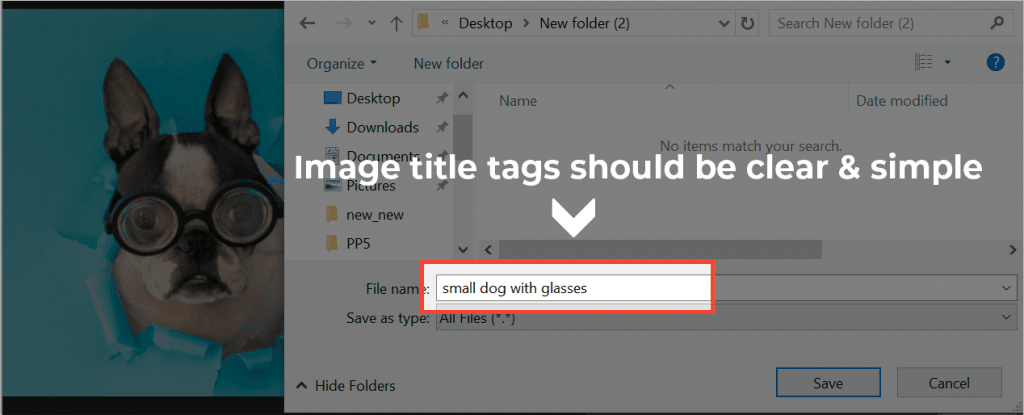
Title tags inform search engines about your image’s content. A descriptive title improves searchability.
Instead of uploading a generic filename like “img_45632.jpg,” rename it to something specific and relevant, such as “small-grey-cat.jpg” or “red-sports-car-driving-on-highway.jpg”. This allows search engines to better understand and index your images, making them more discoverable to users searching for those specific terms.
Alt Tags
‘Alt tags, or alternative text, are crucial HTML elements used to describe images, such as a small yellow cat, for both accessibility and SEO purposes. These tags provide a text alternative, appearing if the image fails to load or for screen readers used by visually impaired individuals.
From an SEO perspective, alt tags inform search engines like Google about your image’s content. Properly optimized alt tags can significantly boost your image’s ranking in search results, increasing your website traffic. For example, instead of “cat.jpg”, use descriptive alt text like “small yellow cat sitting on a blue cushion”.
High-quality stock photos offer a convenient solution when time or budget constraints exist. They provide visually appealing images quickly. Incorporating stock photos enhances the visual appeal of your content, keeping readers engaged, especially when paired with descriptive alt tags. Utilize stock photos to make your posts more engaging.
Final Word
Optimizing WordPress image sizes is simpler than it seems. WordPress’s default image sizes often suffice. However, for specific needs, customizing them is essential. Consider using plugins like Smush or ShortPixel for automated compression. For example, a blog post’s featured image might require a larger size than thumbnails.
So, adjust settings in “Settings > Media”. This ensures optimal display and performance. Now, share your image management process. How do you handle image optimization in WordPress? Comment below!